
Completa Pro
Every job, start to paid, in one app.
Price the work, agree on changes, run each milestone, and track your payout without leaving the job.
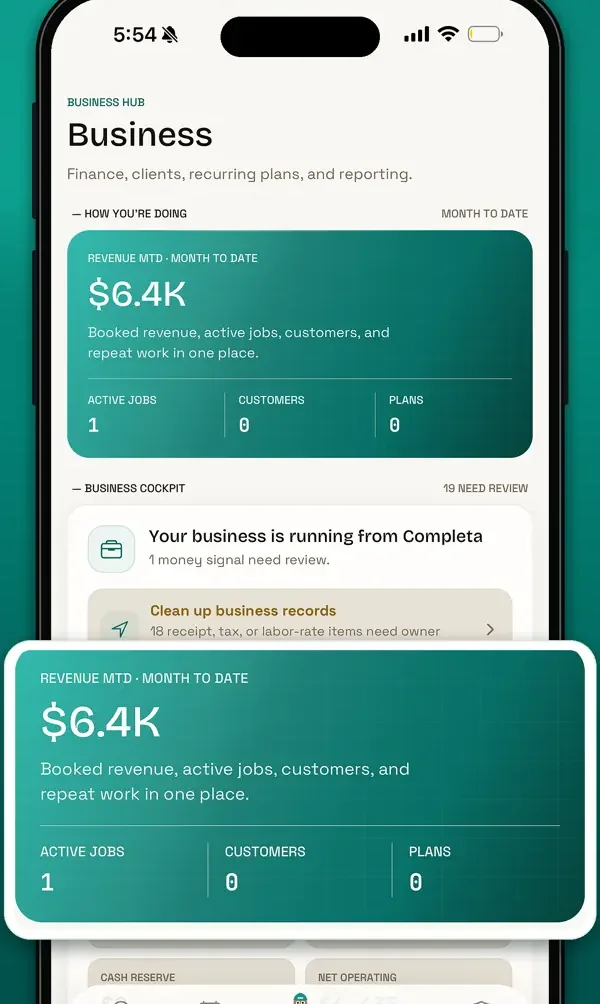
Estimating
Send estimates your customers understand.
Estimate work for your existing customers in the same app you use for Completa jobs.
List the areas, tasks, quantities, and products.
Mark what you measured and what still needs a visit.
Send the price, schedule, options, and exclusions.
The accepted version stays with the job.
Job review
Review the job before you commit.
For a Completa job: see the request, ask your questions, then give your answer.
Read the requested work, photos, and measurements together.
Flag hidden conditions or anything that needs a site visit.
Accept, counter with your reasons, or decline.
The work you accept sets the schedule and milestones.
Change orders
Document the change before the extra work.
Show what changed, why, and what it does to the price and schedule. Then get the customer's decision.
Note the cause: a customer request, a hidden condition, or a code requirement.
Show added, removed, or revised tasks next to the original.
Show the price, milestone, and schedule effect before approval.
Approved, rejected, or expired: the answer stays with that version.
Milestones
Run the job in clear stages.
Break the approved job into stages, each with its work, its proof of completion, and its payment status.
Set stages in the order the work happens.
Say what finishes each stage: tasks, photos, or documents.
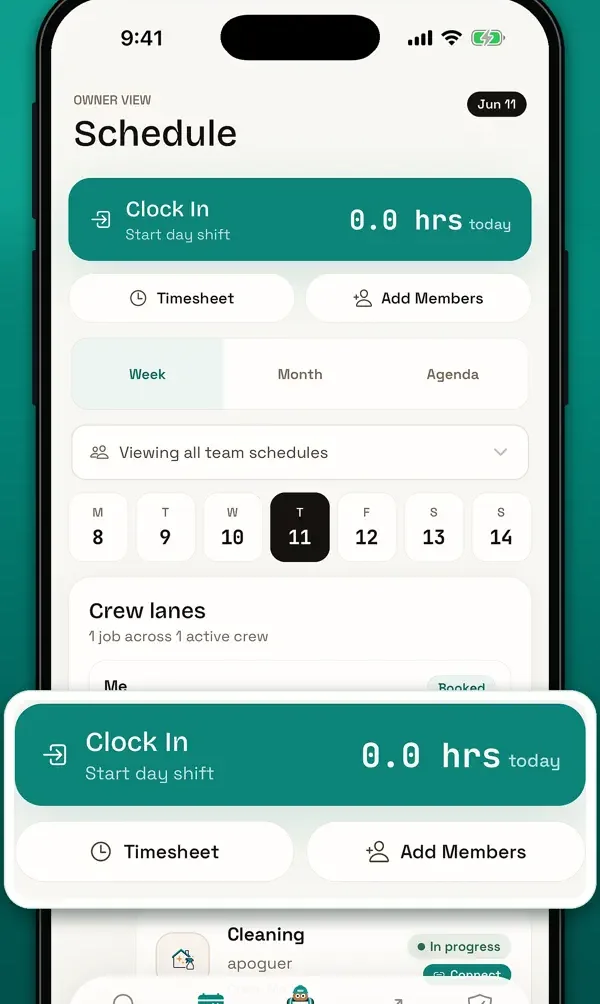
Keep the schedule, crew progress, and blockers in the job.
Attach the proof when a stage is done, for the customer to review.
Client messages
Message from the job, not your personal texts.
Messages, photos, and decision requests stay with the project they're about.
Each message carries the project and its current stage.
Name the topic: access, schedule, a selection, or payment.
Need an answer? Ask for exactly what to confirm.
Move work, schedule, or payment changes from chat into an approval.
Payments & payouts
Track customer payments and your payouts.
Completa Pro shows customer payment, milestone approval, fees, and payout as separate steps.
Check the amount, milestones, fees, and payout terms before you commit.
See when a customer payment is pending, failed, refunded, or in review.
Add your completion proof, then follow the customer's review.
Each payout shows the gross amount, fees, reserves, and transfer status.
Completa is not an escrow agent. Each transaction's terms apply; bank timing depends on the payment processor and your bank.
Job records
One record for the whole job.
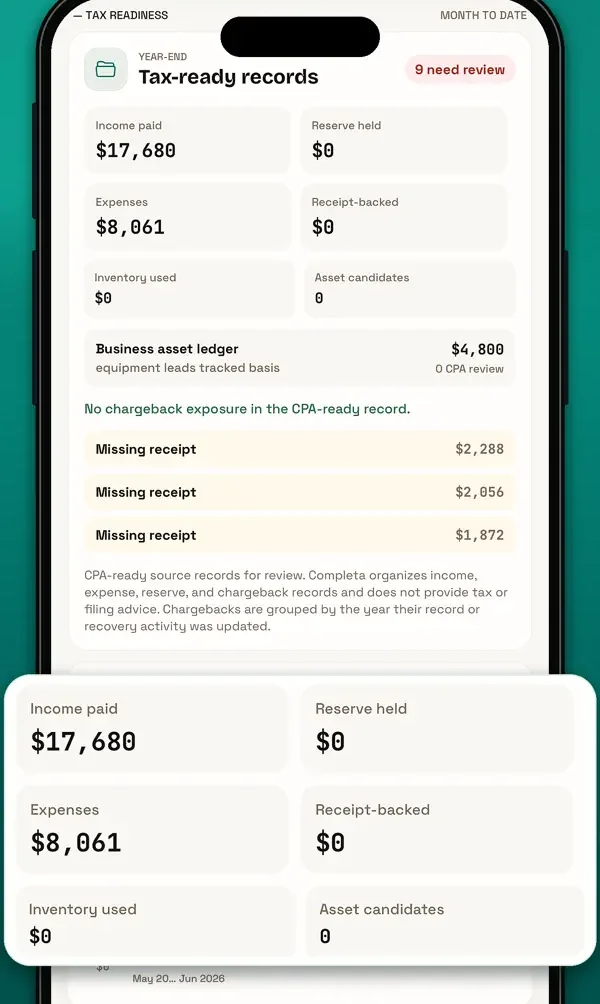
See what was agreed, what changed, what was done, and what was paid, without rebuilding the job later.
Start from the accepted estimate and every approved version.
Messages, schedule, crew progress, photos, and expenses stay with the job.
Approvals, changes, disputes, and callbacks are recorded.
Close the job. Work and payment show separately.
Completed-work proof
Close the job with proof, not memory.
Photos and documents tie the finished work to what was approved, for support, warranty, and future jobs.
Check finished tasks and approved changes; list anything still open.
Add photos, documents, test results, or serial numbers that fit the trade.
Send completion through the milestone, so questions and holds stay on record.
Finished work is recorded apart from payment, warranty, or dispute status.
Recurring work
Set the plan once. Track every visit.
Each visit in a recurring plan gets its own date, status, work record, and payment info.
Set how often, which tasks, the price, and access.
Pause, resume, skip, or reschedule from the plan.
The reason for each change stays with the visit.
Price or work changed? Send a change request.